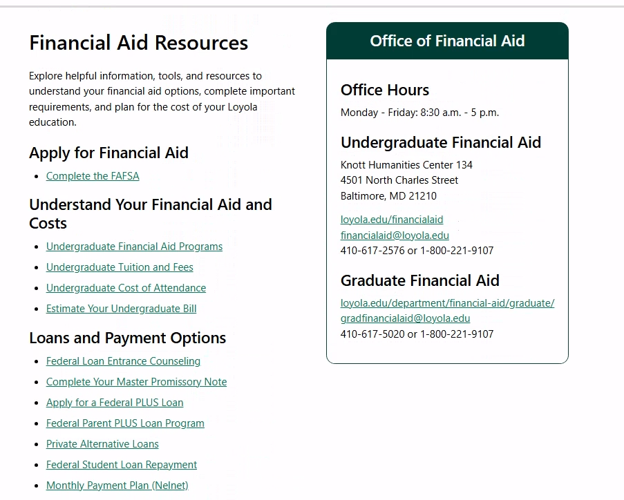
Financial Aid Self-Service Portal Guides
Please Note: Loyola is transitioning to a new Financial Aid Portal
Current and returning students will continue to use Loyola's Self-Service platform for financial aid information for the 2026–27 academic year. Questions about accessing Self-Service can be directed to the Office of Technology Services (OTS).
Applicants and incoming students should follow the instructions for the new Financial Aid Portal. Questions regarding the new Financial Aid Portal can be directed to the Office of Financial Aid.
Beginning in late January 2027, all students will have access to the new Financial Aid Portal. Current and returning students will use the new portal to manage their financial aid for the 2027–28 academic year.
The Office of Financial Aid provides a secure, online tool that allows you to view, manage, and learn more about financial aid at Loyola.
Within each platform, you will be able to:
- View your financial aid award notification (offer letter)
- Check your financial aid status
- View your financial aid checklist
- Upload documents
- Accept or decline Federal Work-Study and/or student loans (if offered in your package)
- Access helpful links/resources
The following instructions serve as a resource guide to navigating through your portal. If you have questions regarding your financial aid award, please contact the Office of Financial Aid.
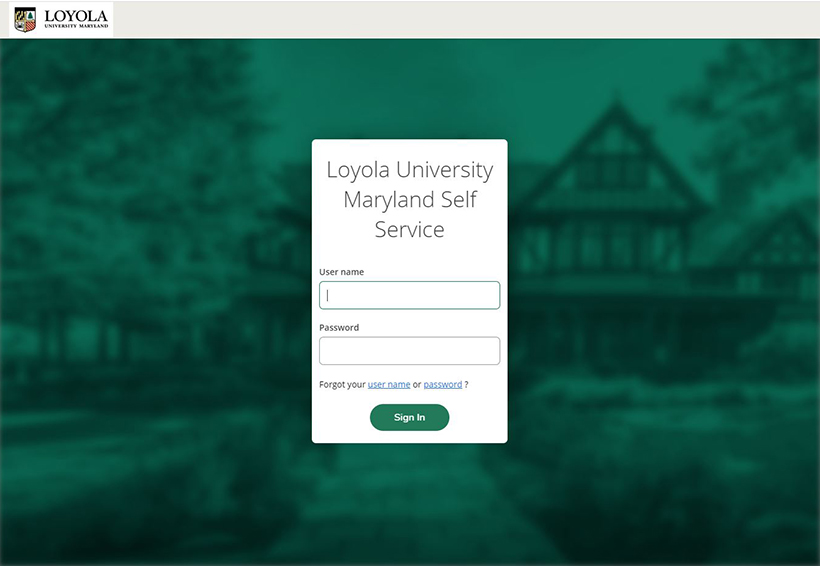
Logging In
To log in to your Loyola University Maryland Self-Service account please visit www.loyola.edu/selfservice.
Your username and password will be your Loyola email and password provided from the Office of Technology Services (OTS).
Accessing Financial Aid
To access your financial aid information, click on “Financial Aid” on your account’s welcome screen.

Once on the Financial Aid Welcome page, you will have access to the following:
The Financial Aid drop-down menu
To access the drop-down menu, please click on “Financial Aid” in the top navigation. This drop-down menu gives access to the following pages: “Required Documents,” “My Financial Aid,” “Financial Aid Notification,” and “Communication Option.”

Accessing pages under the Financial Aid drop-down menu:
Required Documents page
This page will show your list of required documents for a specific academic year, their status (i.e. received, not received, etc.), and allow you to upload any outstanding documents. To upload required documents select the “manage” button next to the outstanding document.


My Financial Aid page
This page displays your financial aid offer. This is also where users can accept or decline work-study and student loan forms of aid.

Financial Aid Notification page
This page displays your official financial aid offer letter. Please review all information on this page carefully.
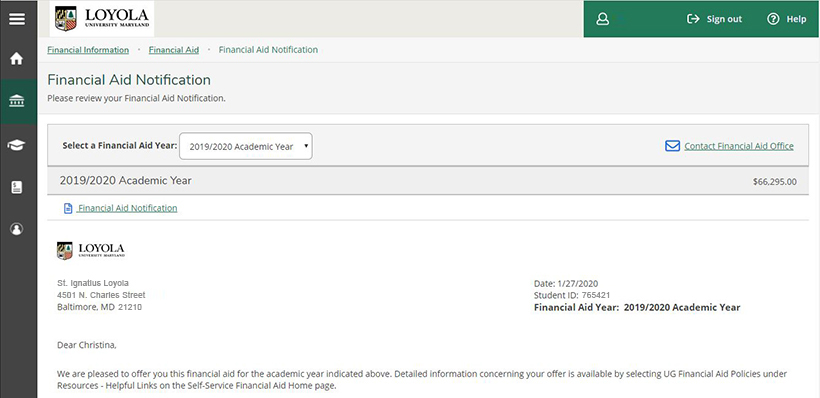
Selecting a Financial Aid year
To view the current status of your financial aid by year, select an academic year from the “Select a Financial Aid Year” drop-down menu. The information below the drop-down menu will then reflect the academic year selected.

Checklist and List of Resources/Helpful Links
Both the checklist and helpful links are located below the “Select a Financial Aid Year” box.

Home Page
The home page displays general information about financial aid at Loyola. To manage your financial aid, use the Menu to access the other pages of your portal.
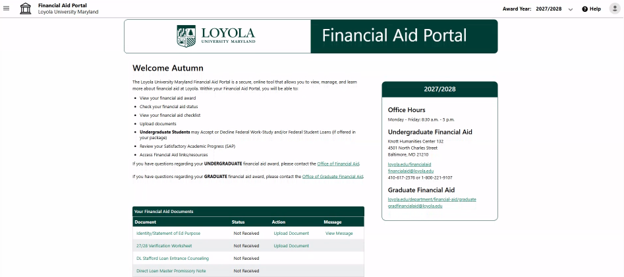
Menu
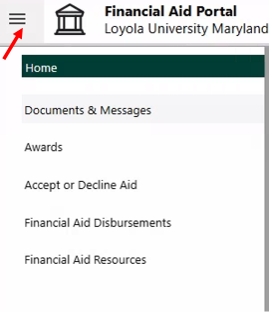
- To access the Menu, select the three horizontal lines on the upper left-hand side of the screen.
- The drop-down menu will display all pages you have access to. At different points in the year, different options will display in your menu.
Switching Award Year Views
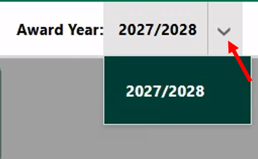
To view different award years, select the arrow next to the award year on the upper right-hand side of the screen. Only award years you are active in will display in the dropdown.
Documents & Messages Page
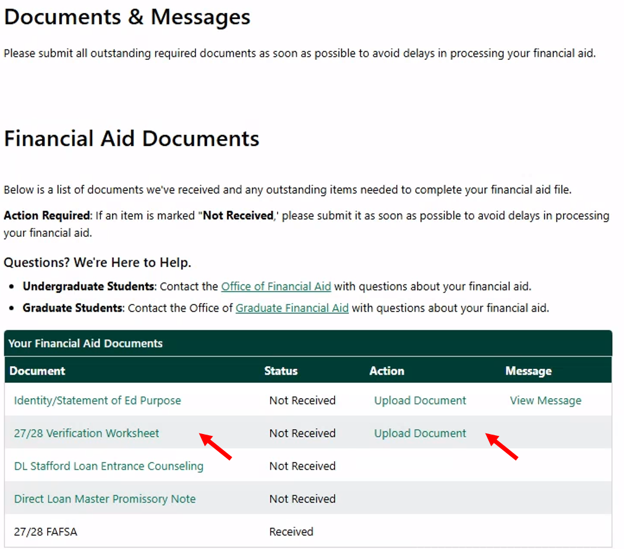
- This page displays all documents the Office of Financial Aid has received along with any outstanding documents.
- Select the linked name of each document to either open and complete it, or to view a message about how you can resolve an outstanding item.
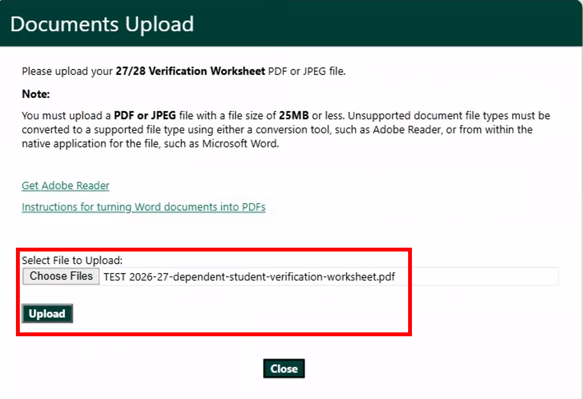
- You can securely upload documents to this page by selecting the "Upload Document" link next to an outstanding document.
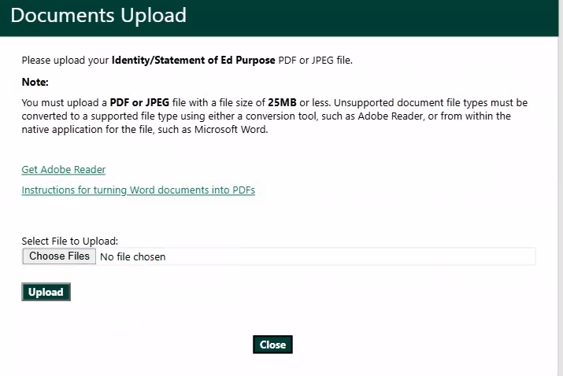
After you have chosen a file from your device to upload, select the "Upload" button.
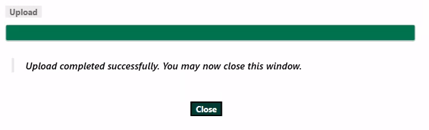
You will receive a confirmation message when your document has been successfully uploaded.
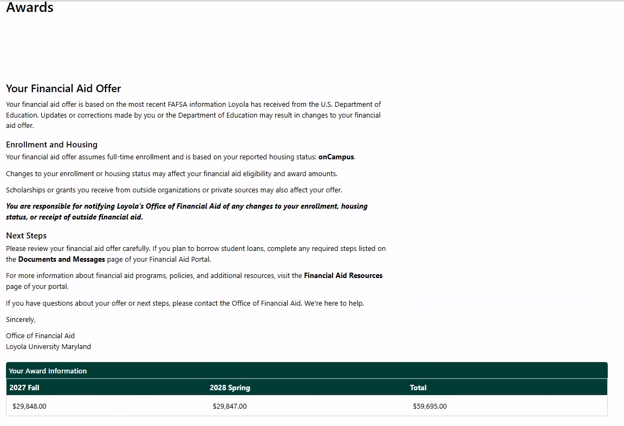
Awards Page
This page displays your Financial Aid Offer along with any required next steps and documents.
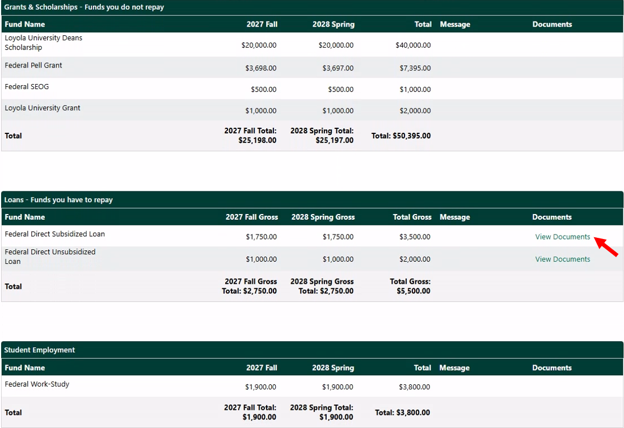
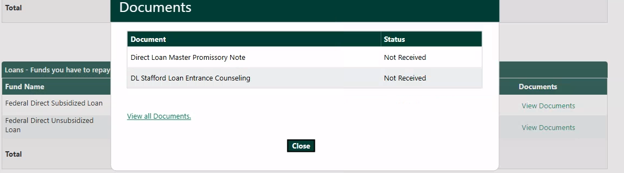
Accept or Decline Aid Page
- On this page, you can act on any awards that are in a status which requires action from you.
- You can use the "Decline All" button to decline all of your financial aid awards, or you can use the "Accept All" button to accept them all.
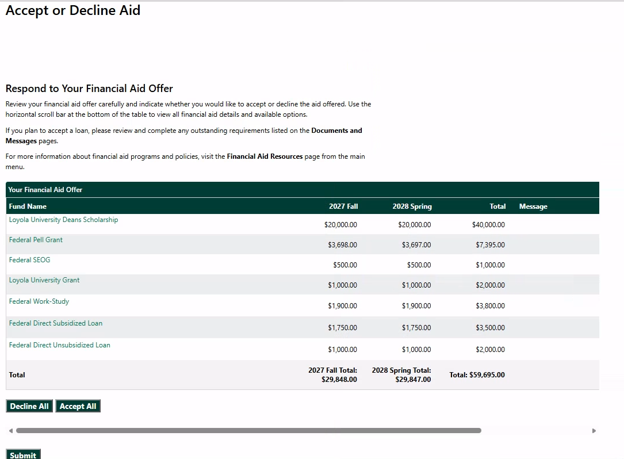
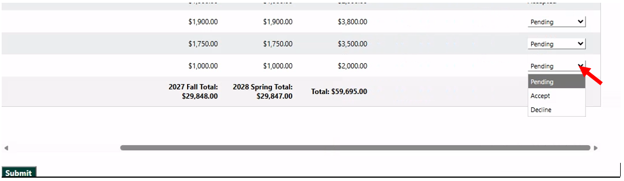
To individually accept or decline each award, use the drop-down list for each award on the right-hand side of the list and change from "Pending" to "Accept" or "Decline."
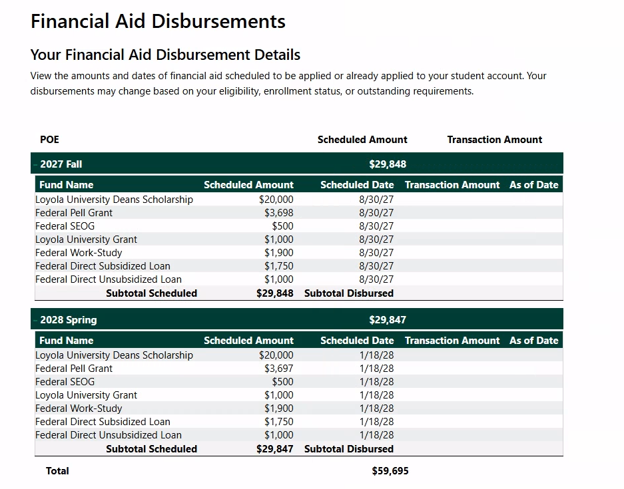
Disbursements Page
- This page shows the status of disbursements of your Financial Aid awards per Period of Enrollment (POE) on your account.
- Note: Not all financial aid is disbursed directly to students. Federal Work-Study requires students to work to earn the funds.
Financial Aid Resources Page
This page has helpful information and resources in one centrally located spot to help you navigate your financial aid process.